01Before photo
Choose before photoor drop it here · up to 30 MB
Load two progress photos, line up the frame, and inspect the change with a wipe or ghost overlay. Your photos never leave this browser.
Compare your photosNo upload. No account. Closing the tab clears the working images from the page.
Your photos stay on this device. They are opened with temporary browser URLs, never uploaded, and removed from the page when you close or clear them.
Load two public examples to explore alignment, overlay and export.
Choose two photos above. Nothing will be uploaded.
Add a before and after image to begin comparing.
This tool aligns pictures; it does not measure muscle, fat, or health. Lighting, pose, lens, pump, clothing, hydration, and camera distance can create apparent changes. Use repeatable conditions.
These public example photos show how the tool works. Their different framing and lighting are reasons to compare carefully, not proof of a specific physical change.
For your next check-in, follow our progress-photo setup guide and repeat the same front, side and back poses.
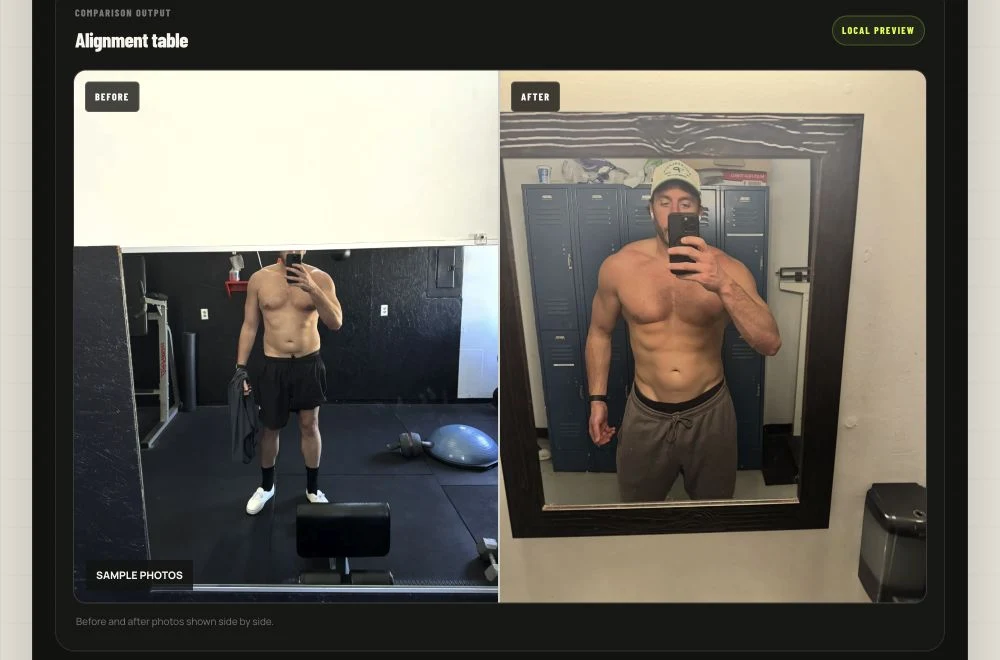
Alignment removes framing noise. It cannot remove a different pose, pump, lens, or lighting setup. Repeat these three conditions whenever you can.
Use the same lens, distance, height, and 4:5 crop. Line up the floor or a fixed background edge before comparing your body.
Face the same direction at the same time of day. Hard overhead light can create definition that disappears in soft light.
Match stance, breath, arm position, and distance from camera. Compare relaxed with relaxed, not flexed with unflexed.
Side by side is easiest to read and share. Use it after alignment for the clearest before-and-after record.
Wipe lets you scan from one image into the other. Ghost is the strictest alignment check: doubled shoulders or hips usually mean the pose or scale still differs.
Yes. Choose Try sample photos to load two public example images. You can test alignment, side-by-side, wipe, ghost and PNG export. Sample comparisons are labeled, and choosing Use my photos clears them so you can start with your own images.
Yes. Open Dates and labels in the comparison controls, then enter an optional date and short label for either photo. They appear in the preview and exported PNG. Turn off Include labels in PNG for an image without your labels. Sample exports always retain their sample marker.
No. Both images stay inside your browser tab. The comparison, alignment, optional face blur, and PNG export run locally on your device. GainFrame never receives the image files.
Use the shared zoom control to match body scale, then adjust the horizontal and vertical position of each image independently. Wipe and ghost modes make differences in pose or framing easier to spot.
Ghost mode places the after photo transparently over the before photo. Matching landmarks such as shoulders, hips, knees, and the floor line helps reveal changes while also exposing setup differences.
Yes. Turn on privacy blur, then position a separate face mask for the before and after photo. The blur is baked into the exported PNG on your device.
No. Lighting, pose, camera distance, clothing, hydration, and time of day can change appearance. Use similar conditions and treat the result as a visual record, not a body-composition measurement or medical assessment.