
Quick answer: To put two progress photos side by side on iPhone, use a shortcut with Select Photos, Combine Images set to Horizontally, and Save to Photo Album. Pick two pictures, check their order and save the pair. Before combining them, match the framing so a tighter crop doesn't make one side look larger.
You pick two gym photos taken a month apart. In one, your shoulders nearly fill the frame. In the other, you can see a foot of wall above your head. A side-by-side image makes that difference obvious. A quick crop before you join the photos makes the comparison easier to read.
How do you put two pictures side by side on iPhone?
Download the Progress Photo Pair shortcut. Open the downloaded file on your iPhone, review its three actions and tap Add Shortcut. If Safari puts the file in Downloads, open it from the Files app. You can also build the same shortcut yourself.
- Open Shortcuts on your iPhone. Tap the plus button to create a shortcut and name it Progress Photo Pair.
- Search for Select Photos, add it, open its options and turn on Select Multiple.
- Add Combine Images below the picker. Set the layout to Horizontally and the spacing to zero. Its input should be the Photos from the previous action.
- Add Save to Photo Album (shown as Save to Photos on some versions). Check that it saves the Combined Image to Recents, then close the editor.
- Run the shortcut and choose exactly two photos. Select the earlier one first and confirm. Allow the requested Photos access, then open the saved image in Photos to check the order.
Apple describes how Shortcuts passes the output of one action into the next. The editor should show Photos feeding Combine Images and Combined Image feeding Save. If the last action points at the two original photos, tap its input and select the output of Combine Images. Apple's guide to action connections
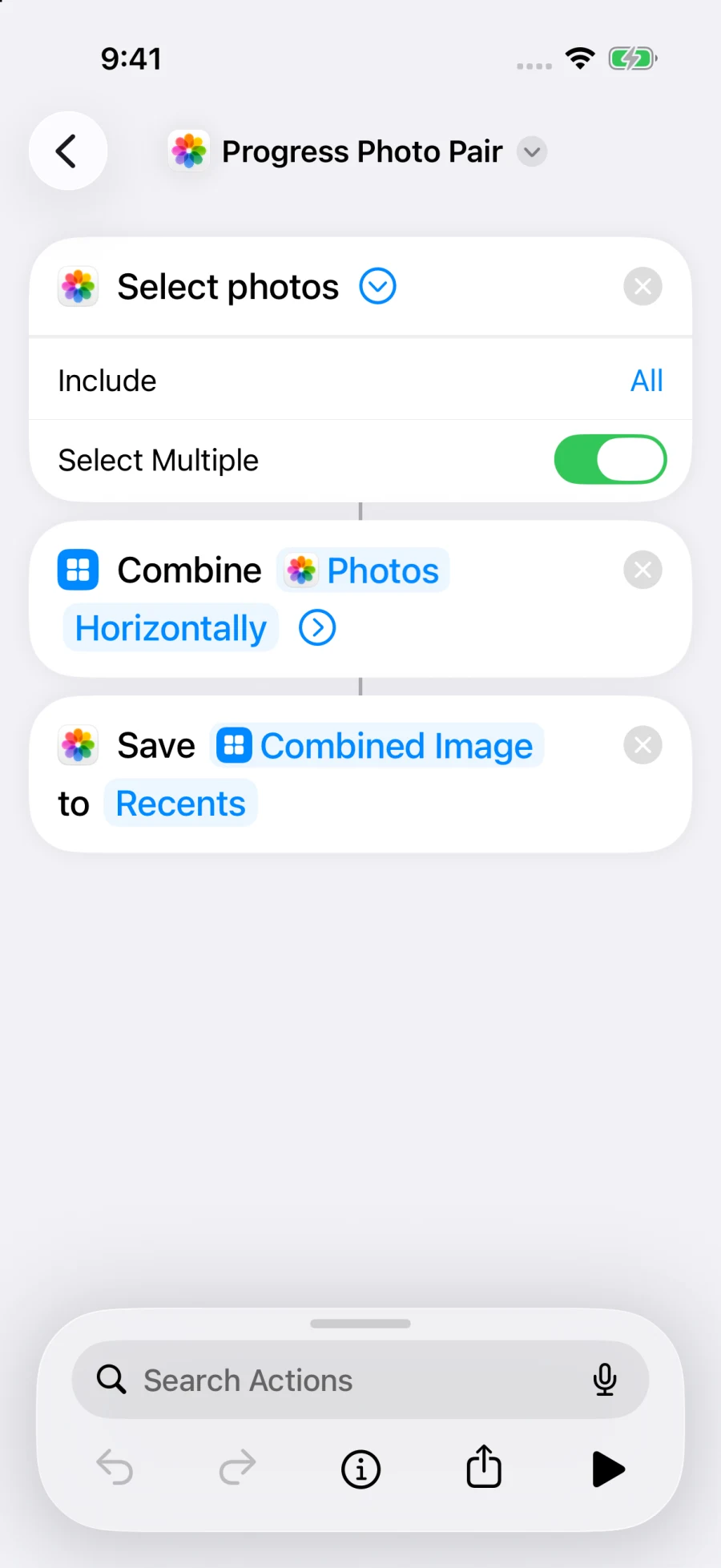
The three actions in the downloadable shortcut, shown in Apple Shortcuts on an iPhone simulator running iOS 26.5.
How do you align the pictures before combining them?
Open each original in Photos. If you want to keep uncropped copies immediately visible in your library, duplicate each photo and edit the duplicates. Pick the same aspect ratio for both crops. A pair of tall, narrow frames generally leaves more room for a standing pose than two square crops.
Choose two landmarks visible in both pictures. For a front view, use the top of the head and the bottom of the shoes. Position the head at the same height in each crop, then adjust the crop until the shoes line up too. For a torso shot, use the shoulders and waistband. Leave a small margin outside both landmarks.
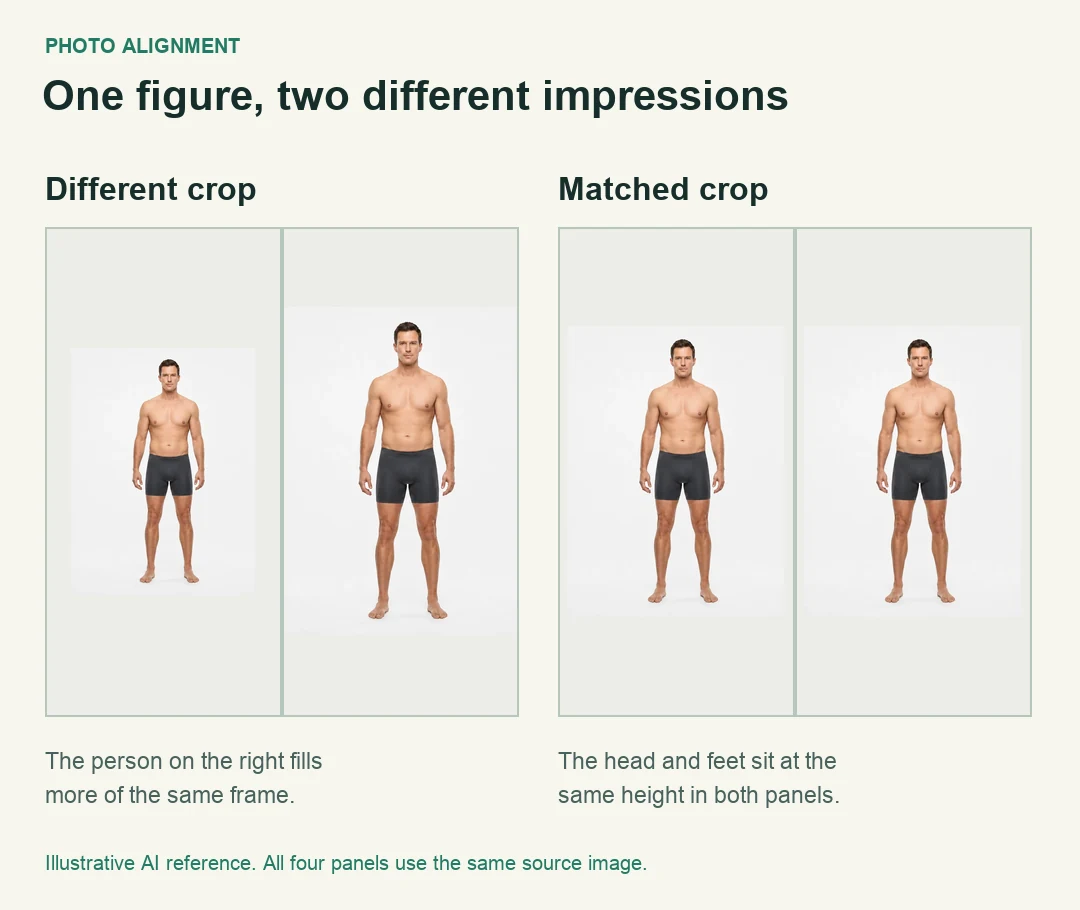
All four panels use the same standardized AI illustration from the body-fat visualizer. Changing the crop alone changes how large the figure appears.
If a foot is outside the original picture, use the nearest landmark that both pictures share. If the shots use different poses or camera angles, label them accordingly. A crop cannot undo the perspective difference between a close wide-angle shot and a distant shot.
Which photo appears on the left?
Select the earlier photo first. We tested the download on iOS 26.5 with two 320 by 280 pixel images, one orange and one teal. Tapping orange first produced a 640 by 280 pixel PNG with orange on the left and teal on the right. Try this with two pictures you can easily tell apart. If the older picture lands on the right, run it again with the selection reversed. Keep the originals and discard any collage with the wrong order.
Before sharing, check the mirror and the background for other people. The shortcut saves the pair to your Photos library. Your existing iCloud Photos settings apply to that saved image, just as they do to a picture you take with the camera.
How can you compare without cropping your originals?
Use the free Progress Photo Compare tool if you want to adjust scale and position while looking at both frames. It includes sample images, a wipe view and a PNG export. Its editing runs in the browser tab. The native shortcut is simpler when both pictures are already framed the way you want them.
For the next check-in, mark the phone and foot positions, use the same camera lens, and leave the same amount of floor in each shot. Our solo progress-photo setup guide shows how to repeat the setup without a second person.
What else should you know?
Can I put two iPhone photos together without downloading a collage app?
Yes. Use the built-in Shortcuts app to choose two photos, combine them horizontally and save the resulting image to a photo album. Once you have created or added the shortcut, you can run it again for a different pair without rebuilding the three actions.
Does the shortcut overwrite my original progress photos?
The three actions in this shortcut select pictures, combine them and save a new image. Your two source pictures stay in Photos. If you separately edit the originals to match their framing, duplicate each photo first when you want both the cropped and uncropped versions visible together.
Why did my shortcut save a vertical stack?
Open the shortcut editor and inspect Combine Images. Choose Horizontally for a left-to-right pair. If the output still looks wrong, check that you selected two still images and that the last action saves the Combined Image. Then run it again and inspect the new file.
Can I use landscape and portrait pictures in the same pair?
You can combine them, though the two sides may look quite different in scale. Pick matching crops if both pictures contain enough of the subject. When an original leaves out a landmark you need, keep it as a separate angle and choose a closer match for the comparison.
Does a side-by-side photo tell me how much muscle I gained?
A photo pair shows how you looked in those two frames. Pose, camera height, lighting and a recent workout can all affect appearance. For a training check-in, save the photo dates and compare several similarly framed pairs alongside training records or repeatable measurements.
Compare your own pair
Choose two pictures, line up a shared landmark and save the comparison.
Open Progress Photo Compare