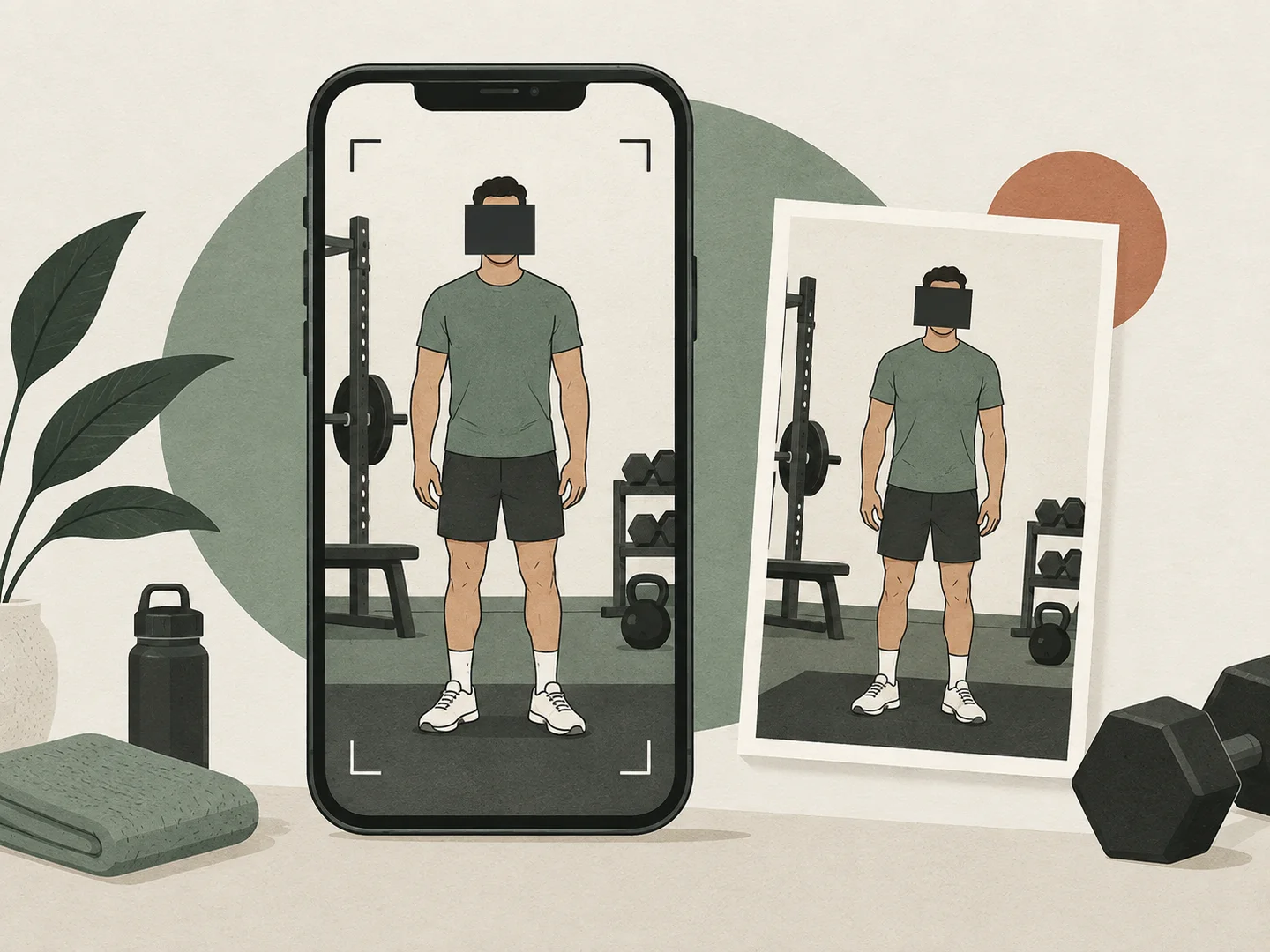
Choose what stays private
Draw a region around a face, name badge, tattoo or reflection. Use an opaque cover for details you want completely hidden.
Cover a face. Crop a reflection. Share the photo you intended. Your images stay in this browser, from first edit to final export.
Cover faces, reflections, badges or anything you would rather keep to yourself.
1–10 photos · JPEG, PNG, WebP · 12 MB eachDraw a region around a face, name badge, tattoo or reflection. Use an opaque cover for details you want completely hidden.
Check bystanders, mirrors, screens and location clues. Blur reduces detail but does not guarantee anonymity.
Export a flattened PNG with the original file metadata removed. Your original stays untouched; the editor keeps no saved library.
No. Photo decoding, editing and export happen locally in this browser. The editor does not upload the image files, filenames, dates or edit regions. Basic usage events exclude those details.
Choose a JPEG, PNG or WebP, then drag a rectangle over the face or use Add cover. Select Blur and adjust its strength. Use the position and size sliders to cover the entire area, then prepare a PNG and inspect it before sharing.
An opaque cover replaces the selected pixels with a solid color. Blur keeps a softened representation of the original area and can leave identifying information visible. Neither removes clues elsewhere in the image, so review the entire photo.
Yes. Add up to 10 photos, with a maximum of 12 MB and 32 megapixels per source file. Images are resized to at most 1,600 pixels on the longest edge. Each photo has independent regions and crop settings. Prepare all PNGs, then save the individual edited copies.
Use a current Safari browser and choose JPEG, PNG or WebP images. HEIC is not supported here. Exports are PNGs; open a downloaded file and use Share, then Save Image, to add the copy to Photos.
The export is a new image rendered from pixels. Original EXIF data, including embedded GPS and camera fields, is not copied into it. Visible signs, buildings, reflections and labels can still reveal a location.