
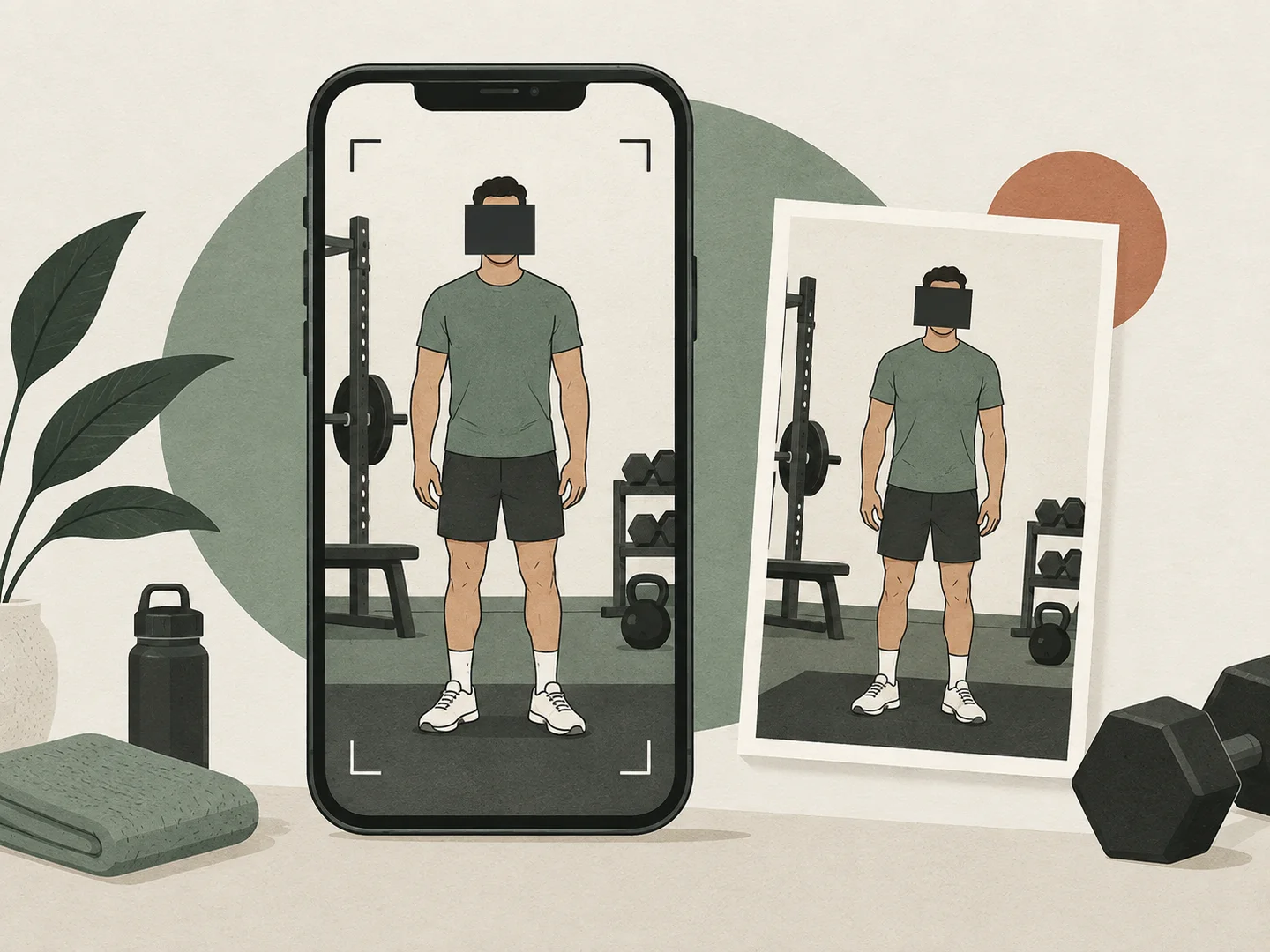
Illustration created for this guide. It does not depict a tested product interface or a measured transformation.
Quick answer: To hide a face in an iPhone gym photo, use a fully opaque shape in Photos Markup or open a JPEG, PNG or WebP in the Gym Photo Privacy Editor. Select the face, choose a cover or blur, and export a separate copy. Review reflections and background details before sharing.
The face in the foreground is easy to notice. The person reflected in a mirror, a membership card on the floor and a name on a screen take a second look. A useful privacy edit starts with the whole frame.
About this guide: Apple instructions were checked against its published Photos and Markup guides on September 23, 2026. The browser workflow describes GainFrame's own editor. The cover and sample image are illustrations, not photos of a real gym member. Written by Michael Rode.
How do you cover a face using iPhone Photos?
Apple's Photos guide provides Markup shapes with fill and opacity controls. For a quick cover, duplicate the photo first so you can keep an untouched version. Open the copy, choose Edit, then Markup, and add a shape. Set its fill to a solid color and its opacity to full, then resize it over the entire detail you want hidden. Save the edit. Button positions can vary with your iOS version. Apple's Markup instructions and shape and opacity controls
A broad, opaque rectangle makes the result easy to inspect. Avoid relying on a translucent highlighter stroke: the underlying detail may remain visible. Include the whole face and any identifying detail you intend to conceal, rather than drawing a narrow line across the eyes.
How do you blur a face in the browser editor?
The free Gym Photo Privacy Editor processes images on your device. It accepts JPEG, PNG and WebP files. Convert a HEIC file to one of those formats before opening it here.
- Select Choose photos and open the picture you want to edit.
- Drag a rectangle across the face, or select Add cover and use the position and size sliders.
- Keep Opaque for a solid cover, or choose Blur and adjust its strength.
- Add a separate region for every reflection or identifying detail.
- Use Crop & framing if a background detail can be excluded entirely.
- Select Prepare PNG, then save the file from the download link.
On iPhone, open the downloaded PNG and use the share menu's Save Image option to keep a copy in Photos. The exact download location depends on your browser settings. Open the saved copy again before sharing so you inspect the file that will leave your device.
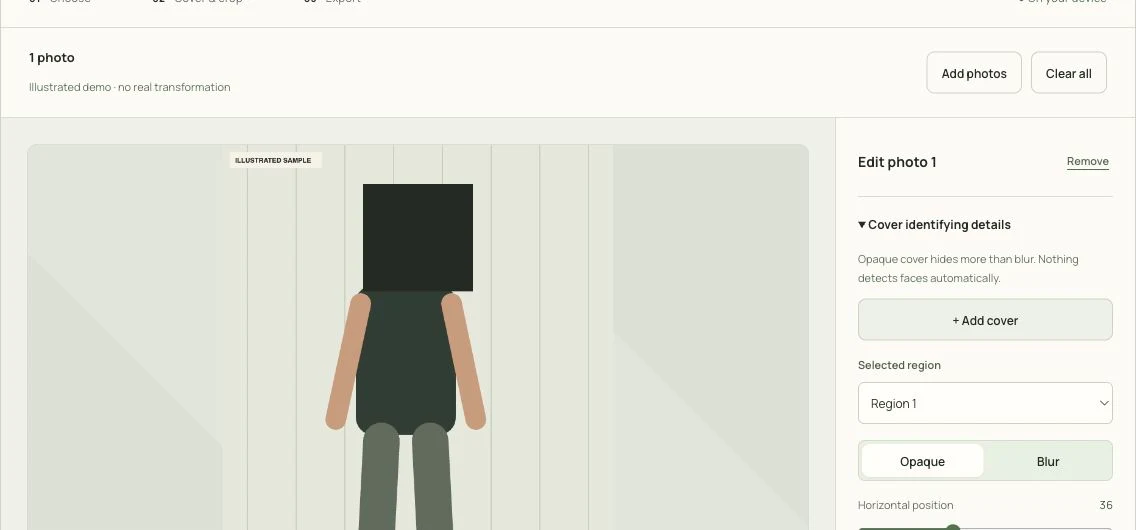
The editor's desktop interface with its built-in illustrated sample. On a narrow screen, the controls move below the photo.
Is blur enough to hide someone's identity?
Blur softens the original pixels and may leave recognizable information. An opaque cover replaces the selected area with a solid color. If hiding the detail is the priority, a fully opaque cover gives you a simpler result to verify.
The rest of the picture can still identify someone. Clothing, distinctive tattoos, a reflection outside your selection or a visible username may remain. Cropping can remove a detail more cleanly than covering it, especially at the edge of the frame.
What should you check before sharing a gym photo?
| Area | Look for | Useful edit |
|---|---|---|
| People | Faces, bystanders, reflections | Separate opaque covers |
| Clothing and skin | Names, team marks, tattoos | Cover or crop |
| Screens | Messages, usernames, gym accounts | Cover the entire screen |
| Background | Access cards, signs, location clues | Crop or cover |
| Final file | Missed details and the intended version | Open and inspect the saved copy |
For multiple photos, review every frame individually. A face that stayed still in the first picture can move in the next one. The editor keeps regions independent; it does not automatically detect or track faces.
Does the export remove location metadata?
The editor draws the result into a new PNG and does not copy the original file's EXIF fields, including embedded GPS information. It also does not put your original filename into the download name. That removes those original metadata fields from this export.
Visible location clues remain part of the picture unless you edit them. A newly shared platform may also attach its own information. Avoid treating a metadata-free file as a guarantee of anonymity.
How should you keep a private progress-photo routine?
Take the original somewhere you control when possible. Keep the same camera position and framing so you spend less time cropping later. Store originals separately from copies prepared for sharing, using names or folders that make the distinction obvious to you.
For a sequence, use the Progress Photo Timelapse Maker and check its individual cover controls on every frame. Our photo setup tool can help you plan a consistent place to take future check-ins.
What else should you know?
Can I blur a face without installing an app?
Yes. Open a supported photo in the browser privacy editor, add a region, choose Blur and prepare a PNG. Processing happens locally. For a solid cover using iPhone Photos, use a filled Markup shape at full opacity and inspect a saved copy before sharing it.
Will covering a face change my original photo?
The browser editor exports a separate flattened PNG and leaves the source file untouched. Keep that source in your own library if you want it later. The editor does not save a photo library, and closing the tab ends the working session and its unsaved edits.
Can I edit several gym photos at once?
You can open up to ten supported images and prepare their individual PNG exports together. Each photo has its own regions and crop settings, so review all of them. The tool does not detect faces or carry a face position automatically from one image to the next.
Why will my HEIC photo not open?
This editor currently accepts JPEG, PNG and WebP. An iPhone library may contain HEIC originals, which need conversion to a supported format first. Keep your original and convert a copy. Renaming a filename extension does not convert the image or make an unsupported file compatible.